
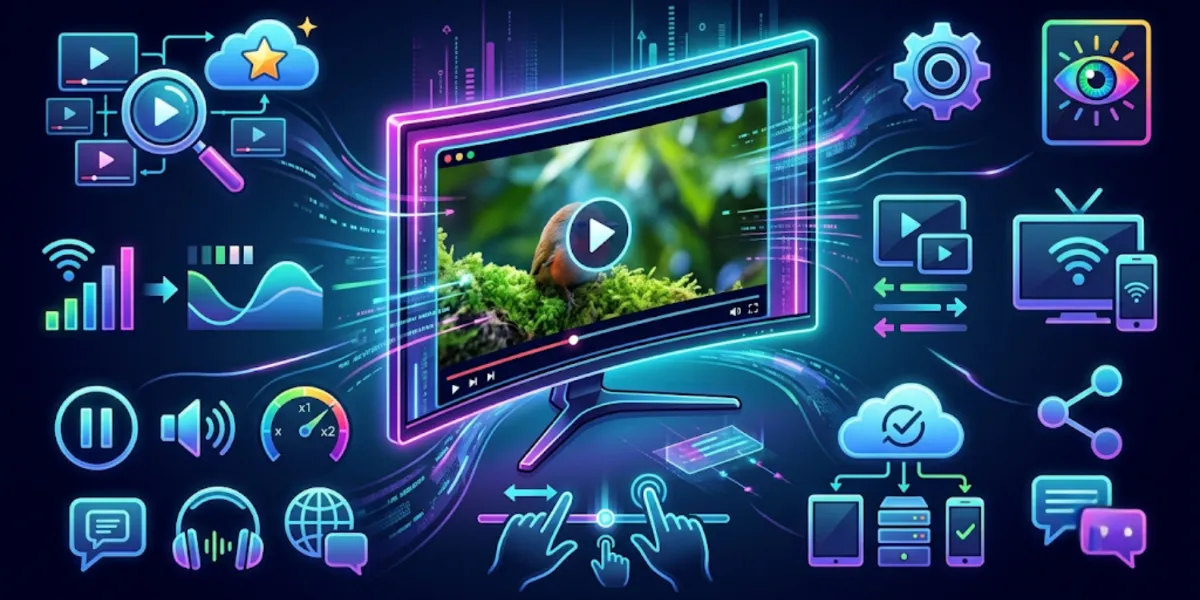
The video itself is only half of what you see on screen. The other half is the player handling it. Play the same 4K clip in two different applications and the difference can be obvious: one stutters and fumbles the subtitles, the other runs it clean and sharp. As media libraries grow more varied and screens grow larger, the software doing the playback matters more than most people expect.
That gap is why choosing a player deserves a little thought. This piece walks through the qualities that separate a capable video player from a basic one — format support, AI enhancements, subtitles, multi-window viewing, and high-resolution reliability — then looks at how one option, GOM Player+, brings those pieces together.
Broad File Compatibility Makes Everyday Viewing Easier
A media collection is rarely tidy. It gathers clips from phone cameras, screen recorders, editing software, and downloads, and each source tends to save in its own format. The first mark of a strong player is that it opens all of them without complaint.
That range saves real effort. When a player handles a wide spread of formats natively, you skip the tedious step of converting files just to watch them — and you avoid the quality loss that conversion often introduces. The original file plays as it was made.
Better Visual Quality Through AI Enhancements
Playback used to mean simply displaying what was already there. Artificial intelligence has changed that. Modern players can now improve the image as it runs, rather than showing the source untouched.
Two enhancements stand out. Image processing can reduce visual noise and reconstruct finer detail, so a soft or grainy frame comes across clearer. Motion optimization tackles a different problem, smoothing out blur and the shakiness that comes from handheld footage.
These features earn their place most with older or lower-resolution video. A recording that looked acceptable on a small screen years ago often reveals its flaws on a large modern display. AI enhancement helps close that gap, making dated footage far more watchable without any manual editing on your part.
Subtitles Continue to Improve Accessibility
Subtitles have quietly become one of the most-used features in any player. They help language learners follow along, make content accessible to viewers who are deaf or hard of hearing, and let anyone watch in a quiet room or a noisy one without missing a word.
Creating them, though, has traditionally been slow work. This is where voice recognition changes the equation. A player that can generate subtitles automatically from the audio removes most of the manual transcription, producing a usable file in minutes rather than hours. Add support for many languages, and a single recording opens up to a far wider audience without extensive editing.
Multi Window Playback Supports Productivity
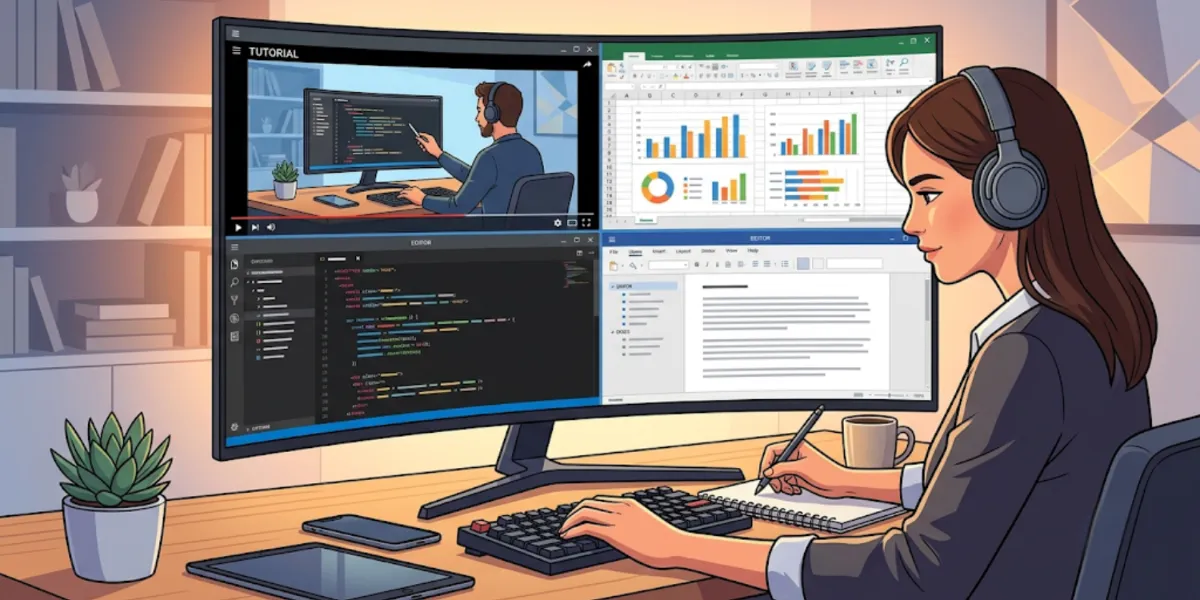
Watching one video at a time is no longer the only way people use a player. Editors compare takes, educators line up reference clips, researchers review footage side by side, and reviewers check versions against one another.
Multi-window playback serves that need directly. By showing several videos on a single screen at once, it makes direct comparison practical and removes the constant switching between separate windows or applications. For anyone whose work involves reviewing more than one clip, it turns an awkward juggling act into a straightforward layout.
High Resolution Playback Matters
UHD and 4K displays are now common rather than exceptional, and playback software has to keep up with the detail those screens can show. A player that stumbles on high-resolution files — dropping frames, stuttering, or lagging behind the audio — undermines the whole point of sharper video.
Smooth, uninterrupted playback lets the image speak for itself, with the accuracy and fine detail that high resolution is meant to deliver. That reliability matters for casual viewing, and it matters even more in professional workflows where an accurate picture is part of the job.
Features Worth Considering in a Video Player
Pulling the threads together, here is what to weigh when comparing players. Match the list against how you actually watch, rather than chasing every feature at once:
- Wide support for common video formats
- AI image enhancement capabilities
- Automatic subtitle generation
- Large subtitle library integration
- Multi-window playback
- High-resolution video support
- Minimal distractions during playback
Your own habits should guide the priorities. A language learner leans on subtitles; an editor values multi-window viewing; someone with a large 4K screen cares most about clean high-resolution support.
Exploring GOM Player+
For anyone who wants those capabilities in a single application, GOM Player+ is one option worth a closer look. It brings several of the features above together rather than covering just one.
On compatibility, it supports a broad selection of formats including AVI, MP4, MOV, MKV, FLV, and WMV, and helps Windows users through optimized codec discovery when a file needs something extra. It can also play partially downloaded or damaged files in supported situations, so an incomplete clip need not be a dead end.
Its AI features address image and subtitles alike. AI Video Upscaling enhances visual detail by reducing noise while easing motion blur and camera shake. The AI Voice Recognition Subtitle Generator creates SRT subtitle files in more than 90 languages directly from a clip's audio, making subtitle creation far less of a chore.
Subtitle handling extends beyond generation. The player connects to a multilingual subtitle library with automatic searching, linking, and real-time synchronization during playback, so matching subtitles to a file takes little effort. For those working with several clips, Multi Playback displays up to four videos on one screen at the same time.
Rounding it out, GOM Player+ offers uninterrupted UHD and 4K playback alongside an ad-free viewing environment built to keep attention on the content rather than on interruptions.
A modern player, in short, is defined by how well it removes obstacles between you and what you're watching — opening any file, sharpening the image, handling subtitles, and staying out of the way at high resolution. Weigh those qualities against your own viewing habits, and the right choice tends to become clear.